
How I Manage Multiple WordPress Websites in Hostinger
Technology / Using
Managing several WordPress websites becomes easier when hosting, updates, backups, domains, and maintenance follow one consistent system. This is the practical structure I use to keep multiple sites organized in Hostinger.

By Luis Alvarez · Updated October 2026
Key Takeaway
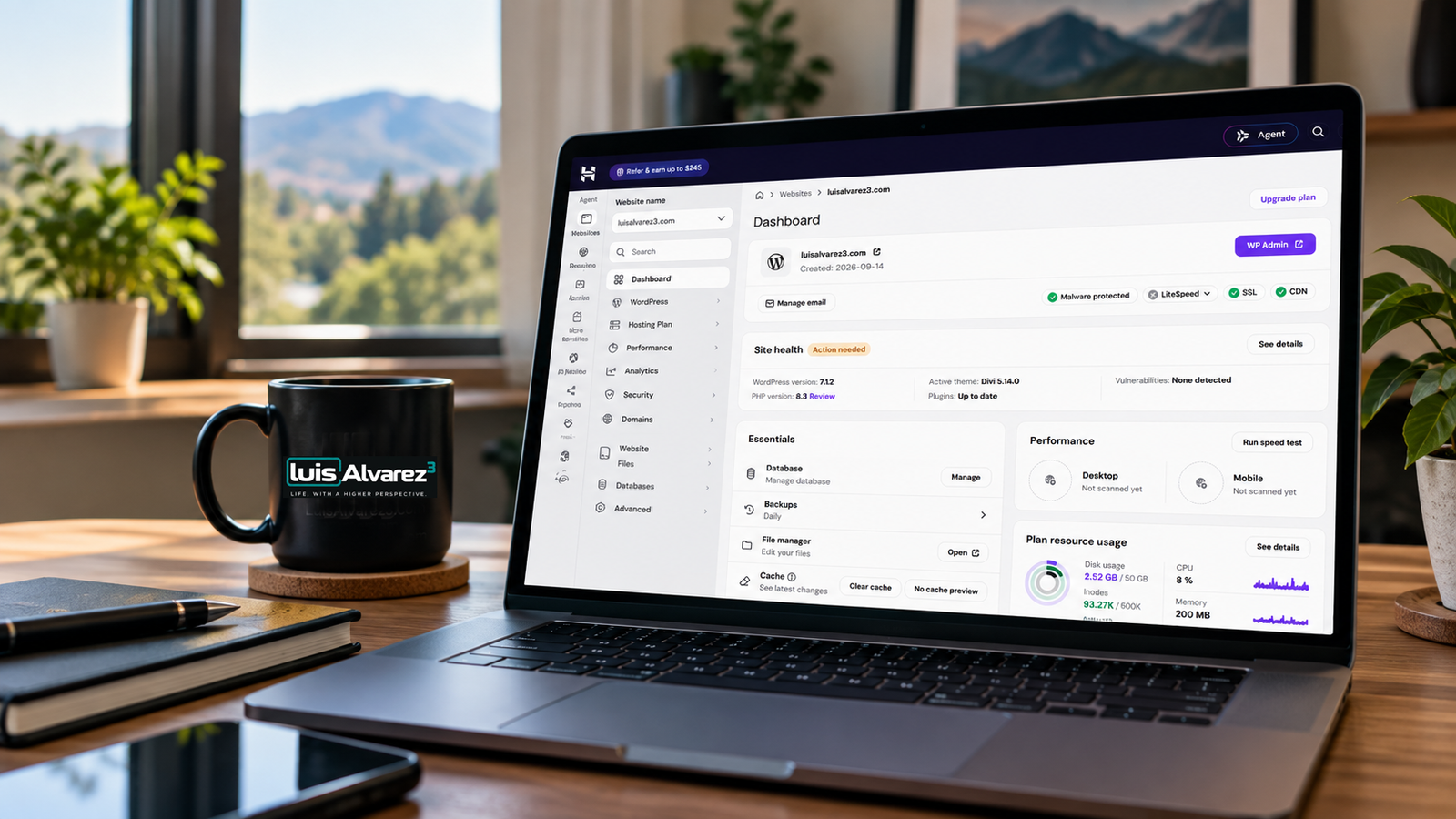
Hostinger made managing multiple websites easier than ever. I manage several websites, email, all from a single interface.
1. Use One Dashboard Without Treating Every Site the Same
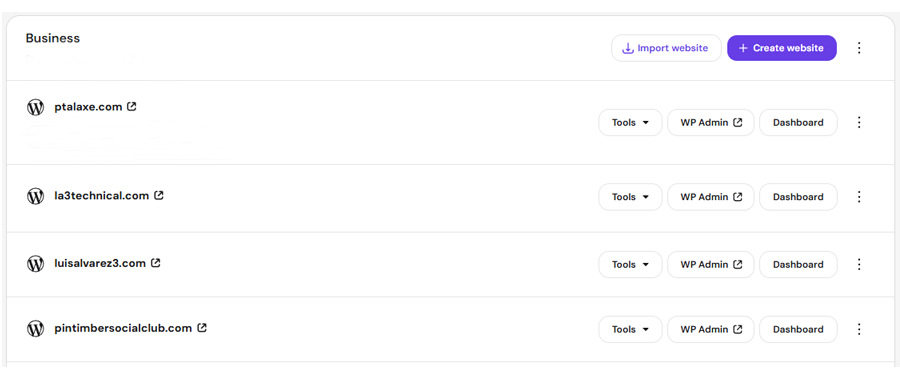
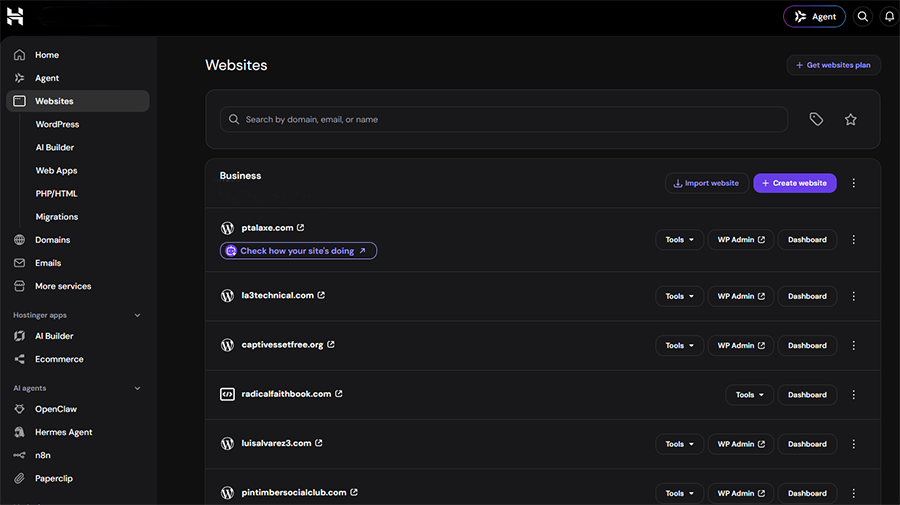
Hostinger provides a central Websites area for accessing multiple WordPress installations, hosting settings, domains, files, databases, backups, and administrative tools. I use that shared dashboard as the starting point, but each website remains its own project with separate goals, plugins, users, analytics, and maintenance requirements. When migrating to Hostinger, I brought over some client websites, but created 4 websites within a six week span.
2. Standardize the Parts That Should Be Consistent
I keep a standard baseline for WordPress versions, security settings, backups, analytics, SEO configuration, image handling, and commonly used plugins. Consistency reduces the chance of overlooking an important setting and makes troubleshooting faster because each installation begins from a familiar structure. Site-specific features are added only when they serve a defined need, helping prevent unnecessary plugins and duplicated tools.
3. Give Every Website Its Own Maintenance Record
Each website has a simple record containing its domain registrar, hosting plan, renewal dates, DNS provider, email service, WordPress administrator access, theme, important plugins, backup schedule, analytics property, and Search Console profile. Passwords belong in a secure password manager rather than the maintenance record itself. My Google account has evolved to become the best tool for my organization, documentation and ties directly into business use tools like Search console and Analytics.
4. Review Updates, Backups, and Security on a Schedule
Automatic updates are useful, but they do not eliminate the need for review. I regularly confirm that backups are completing, WordPress and plugins are current, SSL remains active, forms still deliver messages, and no unexpected administrator accounts or security warnings have appeared. Before a major theme, builder, or plugin update, I create a backup and use staging when the change could affect the site’s layout or functionality. I perform a bi monthly routine where I backup, validate forms and email delivery. about once a month I perform documentation review. If I launch a site before the scheduled time, I backup and document at that moment as well.
5. Separate Website Management From Content Work
Technical maintenance and editorial work are handled as different tasks. Maintenance sessions focus on updates, security, performance, backups, and errors. Content sessions focus on writing, images, internal links, SEO fields, and publishing. Keeping the work separated makes it easier to manage several websites without allowing routine technical checks to consume the time intended for producing content.
6. Use a Repeatable Monthly Review
Once a month, I review every site for updates, backup status, uptime, storage use, broken links, form delivery, analytics activity, Search Console warnings, and approaching renewals. I also confirm that each website still supports its intended purpose rather than simply remaining online. Using the dashboard and Hpanel helps me identify immediate updates per site. I found that plugin conflict can occur and the Hpanel was able to detect this and notify me, especially useful when updates are performed and compatability issues arise.
Need Help Managing Your Websites?
Keeping several WordPress websites secure, updated, and organized can become time-consuming. LA³ Technical offers Web & Digital Solutions to help small businesses and independent website owners manage hosting, maintenance, updates, backups, and ongoing website needs.
On This Page
My WordPress Migration Checklist: What I Checked Before and After the Move
Enjoying This Article?
Get practical insights, project updates, and new articles delivered to your inbox.
Written by
Luis Alvarez
I'm Luis, the creator of LuisAlvarez3.com. I share what I'm building, learning, using, and exploring across technology, projects, and everyday life.
Related Reading
Technology / Using
Technology / Using
Recommended Tools
Hostinger
An agentic platform to build, run, and grow your business online, all in one place.
Obsidian
A notes app built around local Markdown files and linked ideas.
Notion
A workspace for notes, structured pages, and collaborative projects.
Affiliate Disclosure
Some links on luisalvarez3.com may be affiliate links. If you purchase through one of these links, I may earn a commission at no additional cost to you. Recommendations are based on my experience, research, or relevance to the topic—not simply whether a product offers an affiliate program.