
My WordPress Migration Checklist: What I Checked Before and After the Move
Technology / Using
Moving a WordPress website involves more than transferring files. This practical checklist covers the backups, settings, DNS records, functionality tests, and final checks I use before and after changing hosting providers.

By Luis Alvarez · Updated October 2026
Key Takeaway
Before making any big changes, it is always good idea to plan accordingly.
1. Create a Complete Backup Before Making Changes
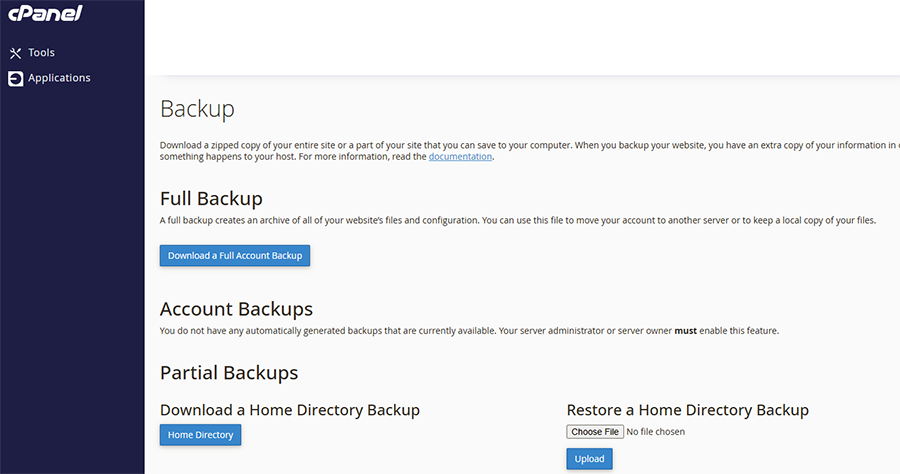
Before moving anything, create a complete copy of the website, including its WordPress files, database, media library, themes, plugins, and configuration files. Download at least one copy to a location outside the existing hosting account so the backup remains available if the original server becomes inaccessible. Also record the current WordPress and PHP versions, active theme, installed plugins, administrator accounts, permalink structure, and any custom code or redirects. I used Cpanel for complete server backups and just stored files within Dropbox for cloud backup and local use.
2. Document the Domain, DNS, and Email Configuration
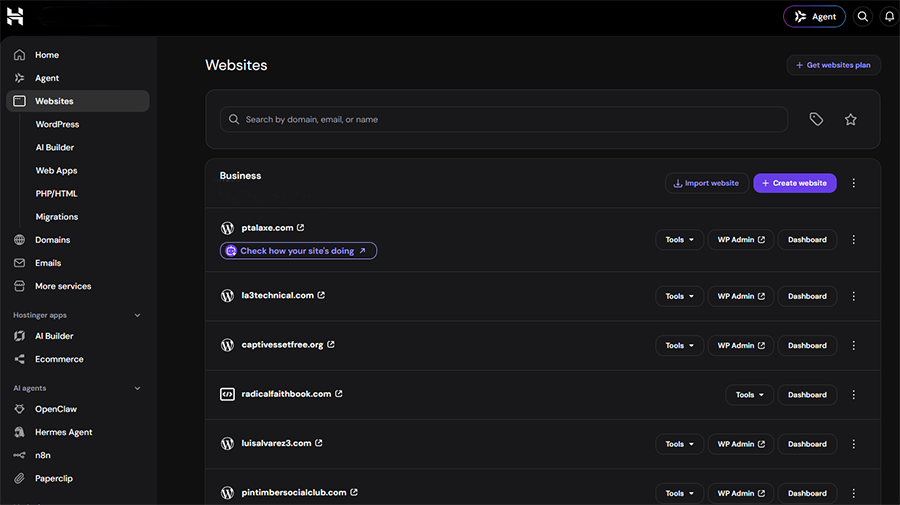
A website migration can affect more than WordPress. Record the existing nameservers and DNS records, including A, CNAME, MX, TXT, SPF, DKIM, and DMARC entries. This is especially important when email is hosted separately from the website because replacing nameservers without recreating the mail records can interrupt delivery. Save screenshots or export the DNS zone before changing anything. Documentation for me was key as I use GoDaddy to purchase and direct domains to Hostinger servers.
3. Prepare and Test the New Hosting Environment
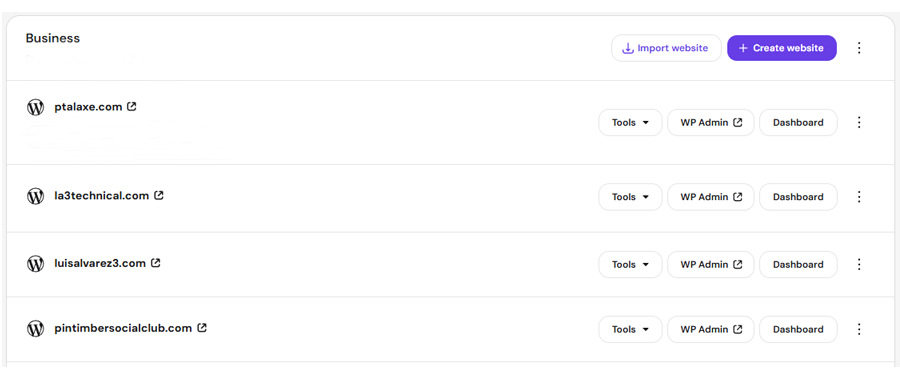
Set up the destination hosting account before directing the domain toward it. Confirm that the new server supports the required PHP version, database requirements, storage, SSL certificate, and WordPress features. Import or migrate the website, then use a temporary URL, preview domain, or local hosts-file entry to inspect it before the public DNS change. Check that pages, posts, menus, forms, images, plugins, and administrator access work correctly. I was able to restore 3 of 4 websites successfully from backup. Their migrating tool helped me with the last one pretty easily.
4. Schedule the DNS Change Carefully
Choose a lower-traffic period for the final cutover and avoid making content changes while the website exists in two locations. Reduce the DNS time-to-live in advance when that option is available, then update the required A record or nameservers. DNS changes may not appear everywhere immediately, so keep both hosting accounts active during the transition and verify which server is responding before troubleshooting an apparent problem.
5. Test the Website After the Move
Once the domain begins reaching the new host, test the website as a visitor and as an administrator. Review important pages, navigation, images, downloads, forms, search, login, mobile layouts, and any ecommerce or membership functions. Confirm that HTTPS works without browser warnings, internal URLs use the correct domain, redirects still function, and no pages return unexpected errors. Re-save WordPress permalinks and clear every caching layer if links or older content behave incorrectly.
6. Monitor the Site Before Canceling the Old Account
Keep the previous hosting account active until the migrated website, email, analytics, backups, and scheduled tasks have been verified. Review uptime, error logs, form submissions, Search Console coverage, and analytics during the first several days. Create a fresh backup from the new host and document its renewal date, backup schedule, and security settings. Only cancel the former service after confirming that no website files, email messages, DNS records, or account data are still needed. For continuity I kept Bluehost on for one month before cancelling.
Need Help Moving Your WordPress Website?
A hosting migration can involve more than transferring WordPress files. If you would rather have help planning the move, protecting your existing site, and verifying everything afterward, LA³ Technical provides practical Web & Digital Solutions for WordPress websites, hosting, domains, DNS, and related services.
On This Page
My WordPress Migration Checklist: What I Checked Before and After the Move
Enjoying This Article?
Get practical insights, project updates, and new articles delivered to your inbox.
Written by
Luis Alvarez
I'm Luis, the creator of LuisAlvarez3.com. I share what I'm building, learning, using, and exploring across technology, projects, and everyday life.
Related Reading

Technology / Using
Technology / Using
Recommended Tools
Hostinger
An agentic platform to build, run, and grow your business online, all in one place.
Obsidian
A notes app built around local Markdown files and linked ideas.
Notion
A workspace for notes, structured pages, and collaborative projects.
Affiliate Disclosure
Some links on luisalvarez3.com may be affiliate links. If you purchase through one of these links, I may earn a commission at no additional cost to you. Recommendations are based on my experience, research, or relevance to the topic—not simply whether a product offers an affiliate program.